
A manifest is the handover document between you and the courier: the list of packages being collected in one pickup. If you invoice from ERPNext (Option 2 in Sales Order Sync Settings), the manifest is what marks those packages as Dispatched in Unicommerce. If Unicommerce raises your invoices, you do not need this page. Manifests are handled there.
Before your first manifest
Two masters must exist, and both are synced from Unicommerce rather than typed in:
| Doctype | What it holds |
|---|---|
| Unicommerce Shipping Provider | The couriers configured on your Unicommerce tenant. |
| Unicommerce Shipping Method | The service levels those couriers offer. |
Creating a manifest
- Open Unicommerce Shipment Manifest and create a new document.
- Set the Channel, the Shipping Provider, and the Shipping Method. Tick Third Party Shipping if the courier is arranged by the marketplace rather than by you.
- Add the packages, either by pressing Get Packages to pull every package ready for dispatch that matches the channel, provider and method, or by scanning AWB codes into the Scan Barcode field one at a time.
- Review the Manifest Items table. Each row shows the shipping package, its Unicommerce order, the tracking code, and the linked invoice.
A package already present in the manifest is rejected when scanned again, and a code that does not match a ready package reports that it could not be found.
Submitting
Submitting the document performs the whole handover in one step:
submit Unicommerce Shipment Manifest
  → the manifest is created on Unicommerce
  → the manifest is closed
  → every package on it is marked Dispatched
  → the manifest PDF is fetched and attached to the ERPNext document
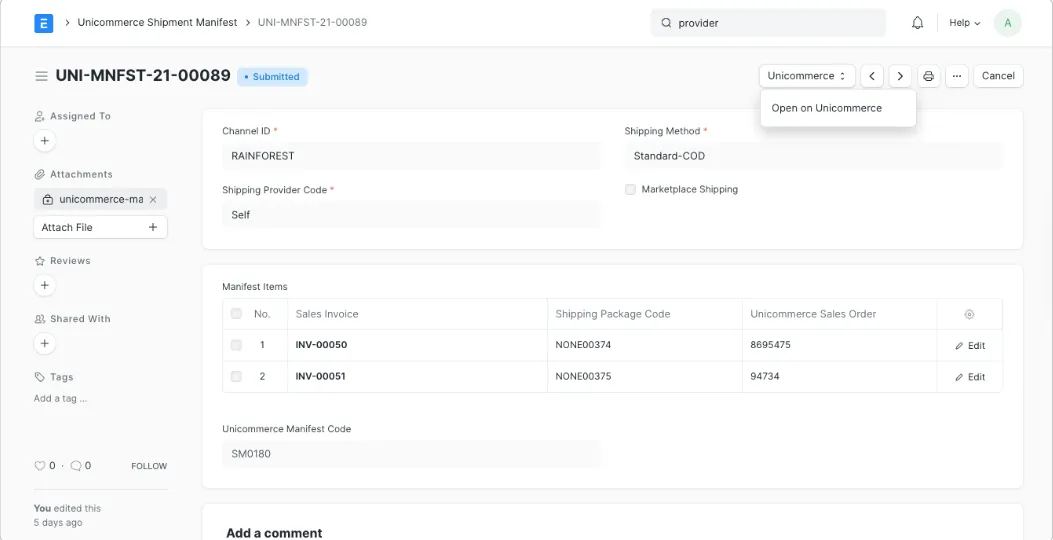
A submitted manifest: the packages it covers, the returned Unicommerce Manifest Code, and the attached manifest PDF.
The Unicommerce manifest code and ID are written back onto the document, and Open on Unicommerce on a submitted manifest takes you to the manifest in Uniware.
Note: Dispatch is what triggers Delivery Note import. Until a manifest is submitted, the packages stay in Ready To Ship and no Delivery Note is created. See