
Connect ERPNext to your Shopify store
In ERPNext, open the Awesome Bar and search for Shopify Setting. This page is used to configure your Shopify store connection and manage all synchronization settings.
Enter your credentials
- Check Enable Shopify.
- Under Authentication Details, enter your Shop URL (for example,
your-store.myshopify.com). Leave off thehttps://- ERPNext normalises this for you. - Paste the Admin API access token you copied earlier into Password / Access Token.
- Paste the API secret key into Shared secret / API Secret.
- Save the page.
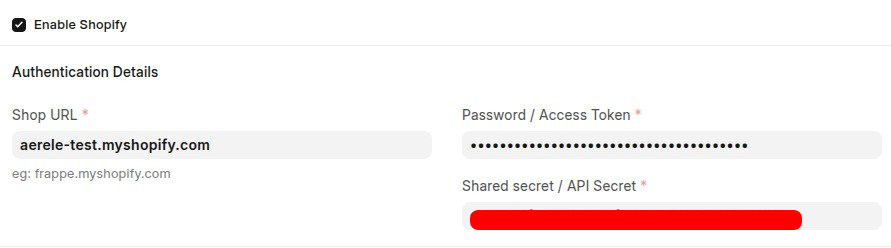
Why the Shared secret matters: Shopify signs every webhook with this secret. ERPNext verifies that signature on each incoming event, so if the two don't match exactly, events are rejected as Unverified Webhook Data. Copy it from the same custom app you created above.
What happens when you save
After enabling Enable Shopify and saving the Shopify Setting, ERPNext automatically registers the required Shopify Webhooks to synchronize orders, payments, fulfillments, and cancellations. Once the registration is complete, the webhooks are listed in the Webhooks Details section, with one entry for each webhook topic:
orders/createorders/paidorders/fulfilledorders/partially_fulfilledorders/cancelled
If ERPNext cannot register the required Shopify Webhooks typically due to incorrect API credentials or insufficient API scopes saving the Shopify Setting is blocked and an error message is displayed. Verify the credentials and permissions, then disable Enable Shopify, update the configuration, and enable it again
Walkthrough
Troubleshooting
Webhooks Aren't Being Received
Symptom:
New Shopify orders do not reach ERPNext. No new Sales Orders are created, and there are no recent entries in the Ecommerce Integration Log.
Possible Causes and Resolutions
1. ERPNext Isn't Reachable Over HTTPS
Cause:
Shopify sends webhooks to:
https://<your-site>/api/method/shopify_integration.shopify.connection.store_request_data
If your ERPNext site is not publicly accessible over HTTPS, Shopify cannot deliver webhook events.
Resolution:
- Ensure your ERPNext site is hosted on a public HTTPS URL.
- Verify that the webhook endpoint is accessible from the internet.
- Local development URLs, tunnels, and plain
http://URLs are not supported for production webhook delivery.
2. Webhooks Were Not Registered
Cause:
The required Shopify webhooks were not registered with your store.
Resolution:
- Open Shopify Setting → Webhooks Details.
- Verify that the following webhook topics are listed:
- orders/create
- orders/paid
- orders/fulfilled
- orders/partially_fulfilled
- orders/cancelled
- If the list is empty:
- Disable Enable Shopify.
- Save the settings.
- Enable Enable Shopify again.
- Save once more to re-register the webhooks.
3. Missing Webhook Subscriptions in Shopify
Cause:
The Shopify custom app is not subscribed to the required webhook topics.
Resolution:
- Open your Shopify Admin.
- Navigate to your Custom App and review its Webhook Subscriptions.
- Ensure the app is subscribed to:
- orders/create
- orders/paid
- orders/fulfilled
- orders/partially_fulfilled
- orders/cancelled
"Unverified Webhook Data" / Events Rejected
Symptom:
The Ecommerce Integration Log contains entries with the Error status and the message "Unverified Webhook Data."
Cause:
ERPNext validates every incoming webhook by recalculating its HMAC-SHA256 signature using the configured Shared Secret / API Secret and comparing it with the X-Shopify-Hmac-Sha256 header sent by Shopify. If the values do not match, the webhook is rejected.
Resolution:
- Copy the API Secret Key from your Shopify custom app.
- Paste it into the Shared Secret / API Secret field in Shopify Setting.
- Save the settings.
- Retry the webhook or trigger the event again from Shopify.
"Failed to Register Webhooks with Shopify"
Symptom:
Saving Shopify Setting with Enable Shopify enabled fails with the message:
"Failed to register webhooks with Shopify. Please check credentials and retry."
Cause:
ERPNext could not authenticate with Shopify while creating the required webhook subscriptions. This is usually caused by incorrect credentials or insufficient API permissions.
Resolution:
- Verify that the Shop URL is correct (for example,
your-store.myshopify.com). - Copy the Admin API Access Token from your Shopify custom app and paste it into Password / Access Token.
- Ensure the Shopify custom app is installed and has the required Orders, Products, Inventory, Locations, and Customers read/write permissions.
- Save Shopify Setting again.
Old Connector Conflict
Symptom:
Saving Shopify Setting fails because a legacy Shopify connector is still enabled.
Cause:
The new Shopify integration cannot run simultaneously with the legacy Shopify Settings connector.
Resolution:
- Disable the legacy Shopify Settings (plural) record.
- Enable and configure the new Shopify Setting (singular) record.