
Running a Manual Sync
You don't have to wait for the scheduler. Unicommerce Settings exposes on-demand sync actions and a shortcut to the logs, so you can make a change and see its effect straight away.
These buttons only appear once Enable Unicommerce is ticked. Triggering a sync also requires the System Manager role.
Sync Now
The Sync Now is a menu with three options. Each one queues a background job and returns immediately - the message you see confirms the job was started, not that it finished.
| Option | Direction | What it does |
|---|---|---|
| Orders | Unicommerce → ERPNext | Runs the order sync at once, rather than waiting for the frequency timer. |
| Inventory | ERPNext → Unicommerce | Publishes current stock levels to the mapped facilities immediately. |
| Items | ERPNext → Unicommerce | Uploads items that aren't on Unicommerce yet, instead of waiting for the next item sync. |
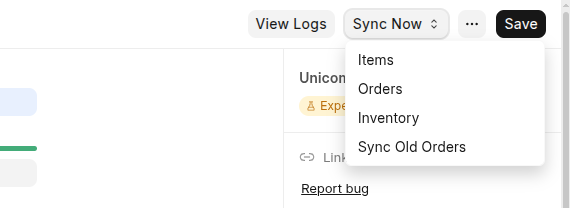
The Sync Now menu: trigger an item, order, or inventory sync on demand.
This is useful straight after changing a setting, or when you want to confirm that a specific order or stock change flows through correctly.
Sync Old Orders
The Sync Old Orders action opens the date-range backfill described in Syncing Historical Orders
View Logs
The View Logs action opens the Ecommerce Integration Log filtered to this integration, so you can immediately review the outcome of whatever you triggered.
Tip: After changing a setting, run one cycle with Sync Now, then open View Logs to confirm it behaved as expected before relying on the schedule.