
Channel Configuration
A Unicommerce Channel record tells ERPNext how to translate orders coming from one Unicommerce sales channel (Shopify, Amazon Easyship, Flipkart, etc.) into ERPNext documents - which company they belong to, which warehouse ships them, which accounts the taxes and charges are posted to, and how payment and shipping are handled.
You need one Unicommerce Channel record for every channel you want to sync. Orders belonging to a channel that has no record, or whose record is disabled, are not pulled into ERPNext.
Prerequisite: Unicommerce Settings must be configured and connected before channel records can do anything useful.
Creating a Channel
Go to Unicommerce Channel list → Add Unicommerce Channel.
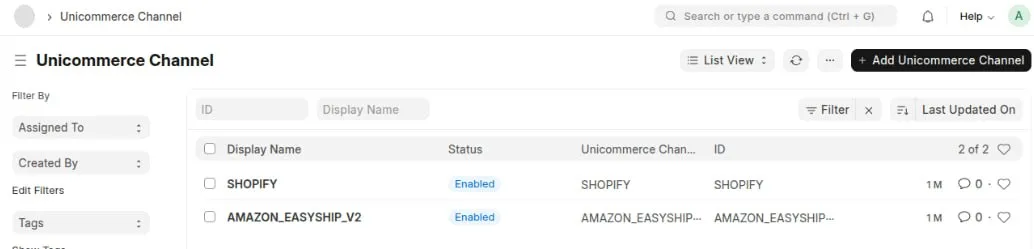
Identity fields
| Field | Required | Notes |
|---|---|---|
| Unicommerce Channel Id | Yes | Must exactly match the channel code in your Unicommerce account - e.g. SHOPIFY, AMAZON_EASYSHIP_V2, FLIPKART. This value is the record's ID, so it cannot be changed casually later. |
| Display Name | Yes | Label shown in lists and reports. |
| Company | Yes | The ERPNext company that will own the Sales Orders and Sales Invoices for this channel. |
| Enabled | - | Master switch. See below. |
Getting the Channel Id right matters. Incoming orders are matched to a channel record by this exact code. A typo means the order silently never syncs, because the connector only looks at channels it can find and that are enabled.
What "Enabled" actually controls
Unchecking Enabled does not just hide the record. Every scheduled job filters on enabled channels, so a disabled channel stops:
- New order sync,
- Invoice and Delivery note creation,
- Order/Shipment status updates from Unicommerce,
- Inclusion in the old-order backfill job.
Use it to pause a channel without deleting its configuration.
Company Consistency Rule
Every link field on the record - warehouse, cost center, and all account fields must belong to the same Company selected on the record.
To make this easier, the form filters the link fields for you:
| Field | Only shows |
|---|---|
| Default Warehouse | Non-group, non-disabled warehouses of the company |
| Cost Center | Non-group cost centers of the company |
| Freight and Forwarding / COD / Gift Wrap Account | Accounts of type Chargeable or Expense Account |
| Cash or Bank Account | Non-group Asset accounts of type Cash or Bank |
Order Defaults
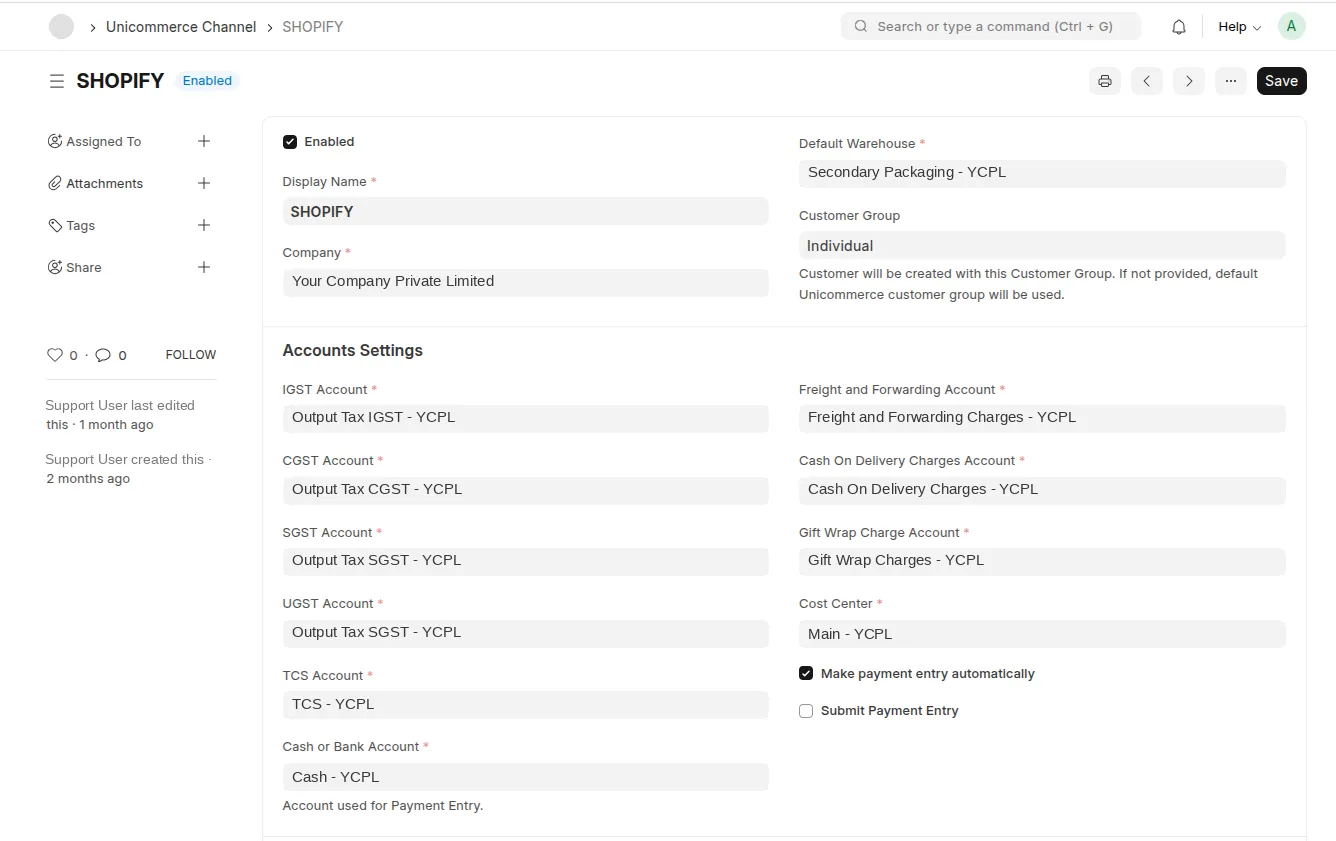
Channel identity, order defaults, and Accounts Settings.
Default Warehouse (required) - the warehouse stamped on every item of the Sales Order created for this channel. Set it to the warehouse that actually fulfils this channel's orders, since it drives stock reservation and the delivery note.
Customer Group (optional) - the customer group used when the connector creates a new customer from a marketplace order. If left blank, the default customer group from Unicommerce Settings is used instead. Useful when you want to report marketplace customers separately from direct ones.
Accounts Settings
These fields decide where each charge that Unicommerce sends on an order lands in your books. All of them are required.
Charge accounts
| Field | Used for |
|---|---|
| Freight and Forwarding Account | Shipping charges and shipping method charges from the marketplace |
| Cash On Delivery Charges Account | COD handling fees |
| Gift Wrap Charge Account | Gift wrapping charges |
Cost Center (required) - applied to the charge and tax rows posted for this channel. Keeping a separate cost center per channel makes channel-level profitability reporting straightforward.
Payment Entry
Cash or Bank Account (required) - the account credited when a Payment Entry is created against the channel's Sales Invoice.
Make payment entry automatically - when checked, a Payment Entry is created against the Sales Invoice as soon as it is made, using the Cash or Bank Account above. Typical for prepaid marketplace orders, where money is collected by the marketplace at checkout.
Submit Payment Entry - when checked, that Payment Entry is also submitted, not just left in draft. Leave it unchecked if your accounts team wants to review payments against settlement reports before submitting.
These two are independent: leaving Make payment entry automatically unchecked means no Payment Entry is created at all, and Submit Payment Entry has no effect on its own.
Naming Series Config
Sales Order Series and Sales Invoice Series let you give each channel its own document numbering - for example SAL-ORD-.YYYY.- for orders and SINV-.YY.- for invoices.
Both are optional. If left blank, the connector falls back to the series configured in Unicommerce Settings. Set them per channel when you need marketplace invoices to be visually distinguishable from your regular sales, or when a marketplace requires a dedicated invoice series.
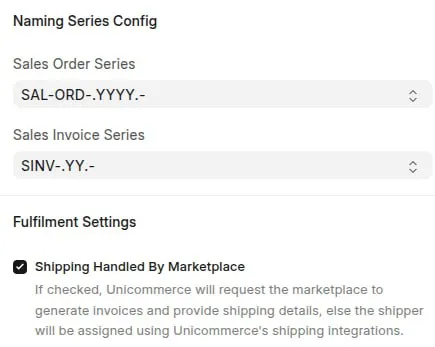
Fulfilment Settings
Shipping Handled By Marketplace - determines who produces the shipping label and invoice:
- Checked - Unicommerce asks the marketplace to generate the invoice and return the shipping details. This is the correct setting for marketplace-fulfilled programs such as Amazon Easyship, where the marketplace controls the label.
- Unchecked - the shipper is assigned through Unicommerce's own shipping integrations, and you handle the label from there.
This flag also affects Unicommerce Shipment Manifest: manifests are relevant only for channels where shipping is not handled by the marketplace, since those are the shipments you hand over to a courier yourself.
Setup Checklist
- Confirm the channel code in Unicommerce and enter it exactly as Unicommerce Channel Id.
- Select the Company first, before any account or warehouse field.
- Set the Default Warehouse that fulfils this channel.
- Map all tax accounts and all three charge accounts, plus the Cost Center.
- Choose the Cash or Bank Account and decide whether payment entries should be created and submitted automatically.
- Optionally set channel-specific naming series.
- Set Shipping Handled By Marketplace to match the fulfilment model of the channel.
- Tick Enabled and save.