
Get your Stripe API keys
ERPNext uses a publishable key and secret key to connect to your Stripe account. Start with test keys so you can verify the complete payment flow without moving money.
Get the keys
Use an account whose API keys you can access. Start in test mode so you can verify the payment flow without moving money.
- Open Stripe Dashboard > API keys.
- Select test mode for the initial setup.
- Copy the Publishable key.
- Reveal and copy the Secret key.
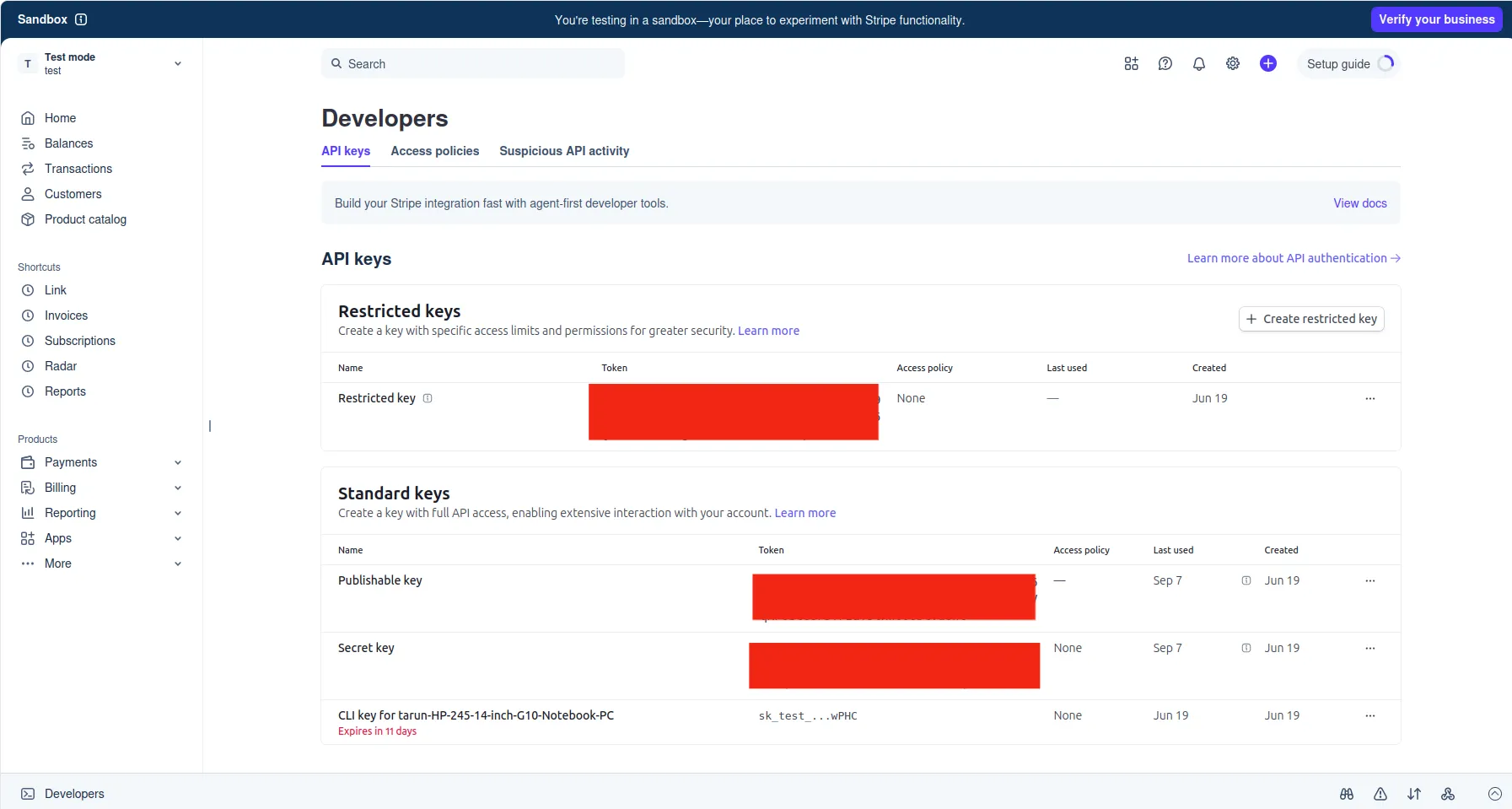
| Key | Used by | Test prefix | Live prefix |
|---|---|---|---|
| Publishable key | The customer-facing payment flow | pk_test_ |
pk_live_ |
| Secret key | ERPNext server requests to Stripe | sk_test_ |
sk_live_ |
Keep the keys secure
- Store the secret key only in the Secret Key field in Stripe Settings.
- Do not put a secret key in documentation, screenshots, email, browser code, or version control.
- Use keys from the same Stripe account and mode. Do not combine a test publishable key with a live secret key.
- Replace the keys in Stripe Settings when you move from testing to live payments.
Expected result
You have a matching publishable key and secret key from one Stripe account and one mode. Continue with Connect ERPNext to Stripe.
Troubleshooting
- If you cannot reveal a secret key, ask a Stripe account administrator to grant the required access or create a restricted key that supports the integration.
- If Stripe rejects the credentials, confirm that both keys are complete, come from the same account and mode, and have not been rolled or revoked.
- If a key was exposed, roll it in Stripe and immediately replace it in Stripe Settings.
Last updated 3 weeks ago
Was this helpful?