
Every synchronised product is a pairing of an ERPNext Item and a Unicommerce SKU. This section governs how that pairing is created, in each direction.
Bringing Unicommerce SKUs into ERPNext
In the Item Sync Settings section, set:
| Field | What it does |
|---|---|
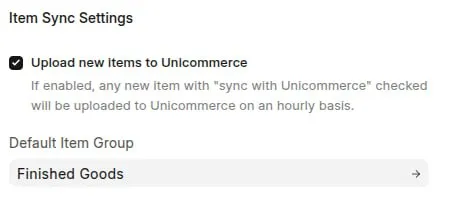
| Default Item Group | The Item Group assigned to any ERPNext Item the connector creates from a Unicommerce SKU. |
When an order arrives for a SKU that has no matching ERPNext Item, the connector creates the Item under this group so the order can still be recorded. Choose a group that suits imported products, since you can always reclassify an Item afterwards.
Publishing ERPNext Items to Unicommerce
In the Inventory Sync Settings section, you can enable the reverse direction:
| Field | What it does |
|---|---|
| Upload new items to Unicommerce | Creates a Unicommerce SKU whenever a new ERPNext Item is saved. |
Leave this unticked when Unicommerce is the master catalogue and ERPNext should only ever receive items from it.
Mapping Item Groups to Unicommerce categories
Unicommerce classifies SKUs by category code. ERPNext stores that code on the Item Group, in the Unicommerce Product Category Code field this app adds to every Item Group. When an Item is created from a Unicommerce SKU, the Item Group is resolved in this order:
- The Item Group whose Unicommerce Product Category Code matches the SKU's category.
- The Default Item Group set in Unicommerce Settings.
- The root of the Item Group tree, if neither is set.
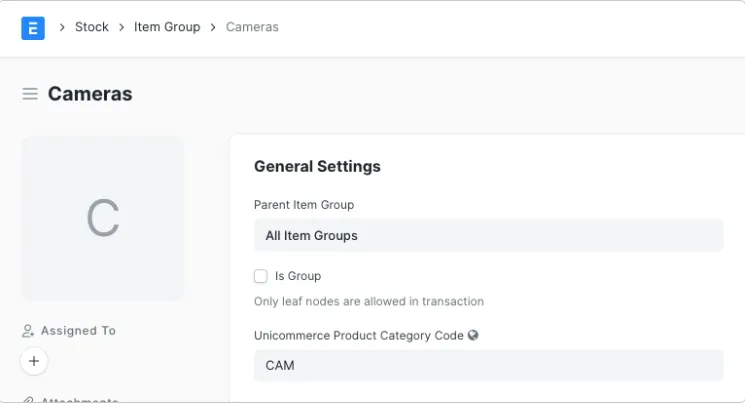
The category code is stored on the Item Group, here CAM on the Cameras group.
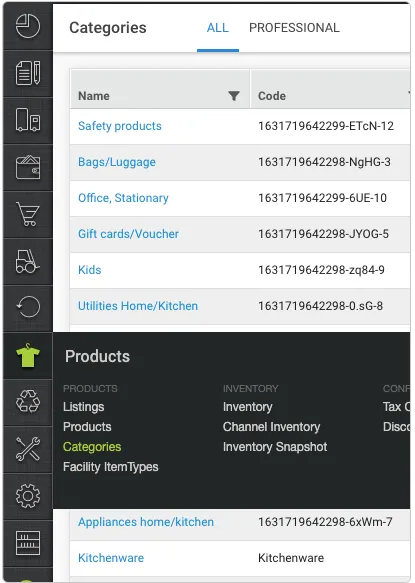
Find the codes to enter under Products → Categories in Uniware.
The same field is read in the other direction when an Item is uploaded, and becomes the SKU's category code on Unicommerce. Set it on each Item Group you sell through, so products land in the right category on both sides instead of collapsing into the default group.
Note: The field is unique across Item Groups. Two Item Groups cannot share one Unicommerce category code.
What is copied between an Item and a SKU
| Unicommerce field | ERPNext field |
|---|---|
skuCode |
Item Code |
name |
Item Name |
description |
Description |
weight |
Weight Per Unit (always grams) |
brand |
Brand |
shelfLife |
Shelf Life In Days |
hsnCode |
HSN/SAC Code |
imageUrl |
Image |
length, width, height |
The Unicommerce length, width and height fields on the Item |
batchGroupCode |
Unicommerce Batch Group |
maxRetailPrice |
Standard Rate |
costPrice |
Valuation Rate |
categoryCode |
Item Group, through Unicommerce Product Category Code |
EAN and UPC barcodes on the SKU are added to the Item's Barcodes table, but only if they pass checksum validation. When an Item is uploaded, its first barcode is also sent as the SKU's scan identifier.
Warning: A Unicommerce SKU code cannot be changed once it exists. Because the SKU is created from the ERPNext Item Code, do not rename an Item Code after it has synced. Doing so orphans the Ecommerce Item link, and later orders for that SKU fail to resolve.
How the pairing is stored
Each synchronised product is linked through an Ecommerce Item record, which ties the two identifiers together:
ERPNext Item  ◀──▶  Ecommerce Item  ◀──▶  Unicommerce SKU
  (item_code)        integration: unicommerce   (integration_item_code)
Because the connector always resolves SKUs through this record, an ERPNext Item and its Unicommerce SKU may use entirely different codes and still map to one another correctly.
Tip: If an order fails with "Item does not have an associated Unicommerce SKU", the Ecommerce Item link is missing. Synchronise the item first, or create the Ecommerce Item record, so the mapping exists before the order is processed again.