
Sales Order Sync Setting
This section controls how frequently orders are retrieved from Unicommerce and which documents ERPNext produces from them.
The settings
In the Sales Order Sync Settings section:
| Field | What it does |
|---|---|
| Order Sync Frequency (In minutes) | How often the scheduled job polls Unicommerce for new and updated orders. |
| Default Sales Order Series | The naming series applied to every Sales Order created from Unicommerce. |
| Default Sales Invoice Series | The naming series applied to every Sales Invoice created from Unicommerce. |
| Default Customer Group | The Customer Group used when an order does not match an existing Customer. |
| Only Sync Completed Orders | Restricts the sync to orders that have reached a completed state in Unicommerce. |
| Sync Order Status Days | The number of days for which an order's status continues to be re-checked. |
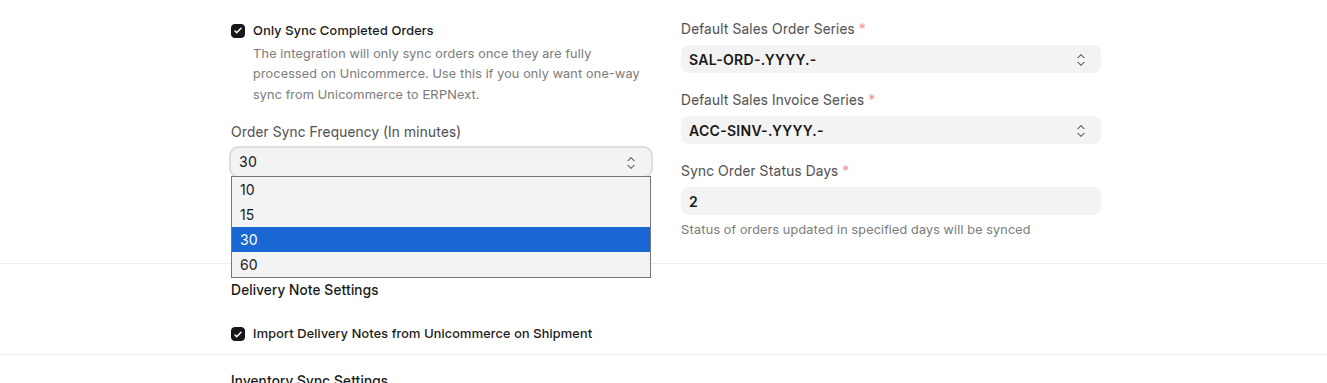
Sales Order Sync Settings: sync frequency, naming series, and the status window.
Understanding "Sync Order Status Days"
An order does not stop changing the moment it becomes a Sales Order; it may later be invoiced, dispatched, or cancelled in Unicommerce. Sync Order Status Days defines the window during which the connector keeps revisiting each order and applies those subsequent events to the matching ERPNext documents, whether that means raising a Sales Invoice, creating a Delivery Note, or cancelling the order.
A wider window captures late changes at the cost of doing more work on each run; a narrower window is lighter but may miss a change that occurs well after the order was placed. Set it to comfortably exceed the time your orders typically take to move from placement to dispatch.
What the connector creates
new order on an enabled Unicommerce channel
  ├─ Sales Order      using the Default Sales Order Series
  ├─ Sales Invoice    using the Default Sales Invoice Series, once invoiced
  └─ Delivery Note    once dispatched, if delivery-note import is enabled
Choosing where invoices are raised
Invoicing runs in one of two ways, and they are mutually exclusive. Decide which one applies before you go live, because the choice also determines where stock is deducted.
Option 1: invoice in Unicommerce (recommended)
Process the order through to invoicing in Unicommerce, then let ERPNext pull in the finished record. Tick Only Sync Completed Orders. The connector fetches only orders that have reached a completed state and creates the Sales Invoice from Unicommerce's own invoice data, so the two systems cannot disagree about invoice numbers or amounts.
Option 2: invoice from ERPNext
Leave Only Sync Completed Orders unticked, so orders arrive unbilled. Open the synced Sales Order, or a Pick List built from it, and use Generate Invoice. This asks Unicommerce to raise the invoice, syncs it back as an ERPNext Sales Invoice, and attaches the invoice and shipping label. Stock is deducted at the same time. Option 2 additionally requires a Unicommerce Shipment Manifest before dispatch, described in Shipment Manifests.
Channel filtering
Only orders from channels enabled under Unicommerce Channel are synchronised. Orders from any other channel are ignored, which lets you onboard one marketplace at a time and verify each before enabling the next.
Tip: Enable Only Sync Completed Orders when ERPNext should hold only finished, paid orders. In that mode the connector also generates the Sales Invoice for each completed order automatically.