
Goods Receipt (GRN) Sync
GRN synchronisation posts goods receipts recorded in ERPNext back to Unicommerce as batched inventory adjustments, so received stock appears in Uniware without a second data entry.
How it is triggered
The flow is driven by a Stock Entry whose type is GRN on Unicommerce. When such a Stock Entry is submitted, ERPNext queues a background job that assembles the adjustment and sends it to Unicommerce.
Stock Entry with type "GRN on Unicommerce" is submitted
  → POST /services/rest/v1/inventory/adjust/bulk
  → on success: a confirmation comment is added to the Stock Entry
  → on failure: an entry is written to the Ecommerce Integration Log
Enabling GRN sync
In the GRN settings section of Unicommerce Settings:
- Tick Use Stock Entry for GRN.
- Enter your Vendor Code, the Unicommerce vendor against which received stock is booked.
- Complete the GRN Batch Group Attributes table described below.
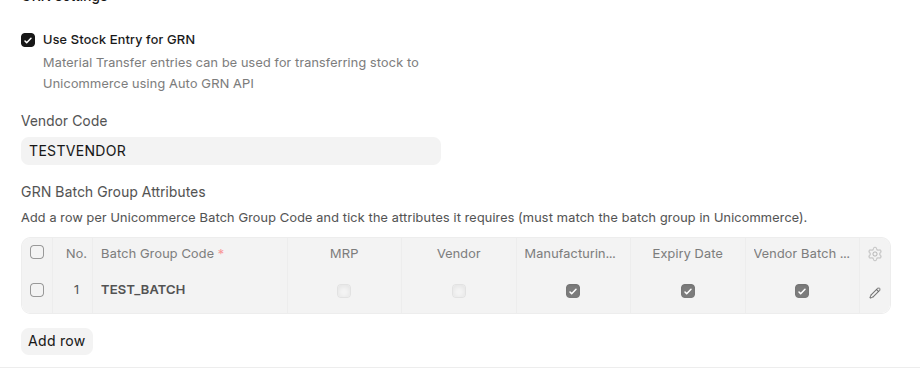
GRN settings: Use Stock Entry for GRN, the Vendor Code, and the Batch Group Attributes table.
Why the Batch Group Attributes table exists
Unicommerce can define several batch groups, for example BATCH1 and TEST_BATCH, and each group requires a different set of batch attributes.
Unicommerce provides no API to read those definitions, so you describe them once in this table. Every item carries its own batch group code, and when a GRN is posted the connector sends only the attributes that the item's batch group requires. This precision is what prevents Unicommerce from rejecting the adjustment for missing or unexpected fields.
Completing the table
Add one row per batch group:
| Column | What to enter |
|---|---|
| Batch Group Code | The code exactly as defined in Unicommerce. |
| Attributes | Tick each attribute that this batch group requires. |
The attributes available for each group are:
- MRP
- Cost
- Vendor
- Manufacturing Date
- Expiry Date
- Vendor Batch Number
- Country Of Origin
- Bill Of Entry
- Trade Price
- EAN
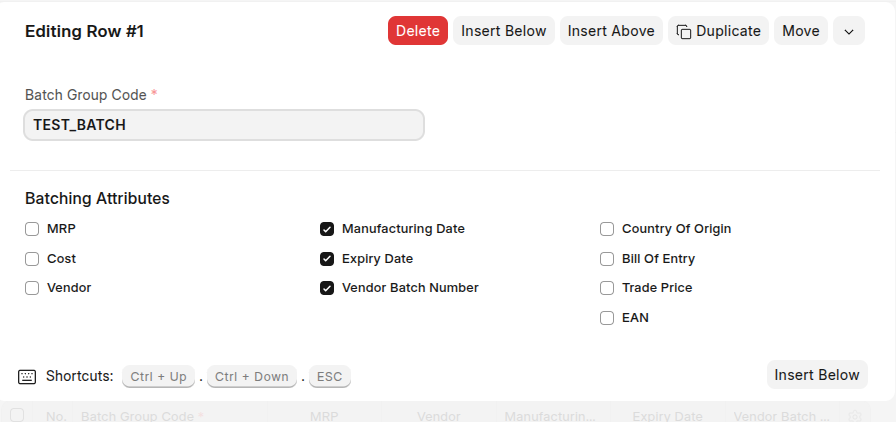
A batch group row: tick only the attributes that this batch group requires.
Validation
While Use Stock Entry for GRN is enabled, the table is validated every time you save the settings:
| Rule | Message if violated |
|---|---|
| The table cannot be empty. | A batch group configuration is required. |
| Batch group codes must be unique. | Duplicate batch group code. |
| Each row needs at least one attribute ticked. | Each batch group needs at least one attribute. |
Validating at save time means a misconfigured GRN is caught during setup, not at the moment stock is received.
Diagnosing a failed GRN
Item-level problems are captured in the Ecommerce Integration Log together with the exact Unicommerce error code, so you can see precisely what to correct. The most common codes are:
| Code | Meaning | Typical resolution |
|---|---|---|
12329 |
Batch code or batch details are empty. | The item has no batch, so assign one before receiving the stock. |
12324 |
Required batch fields are missing. | The batch group requires an attribute the item does not carry, most often Expiry Date. |
12326 |
Invalid batch code. | The batch code does not exist in Unicommerce. |
12328 |
Batch code is missing. | The item's batch number is blank. |
Tip: If a group requires Expiry Date, ensure the ERPNext Batch actually has an expiry set. A blank expiry on a group that requires it is the single most common cause of error
12324.
Walkthrough
Setting up GRN sync
Uploading a Stock Entry