
Create an app using the Dev Dashboard
Before ERPNext can connect to your Shopify store, build a custom app in the Shopify Dev Dashboard and generate the OAuth credentials (Client ID and Client secret) the integration uses. Apps are no longer created inside the Shopify admin; Shopify has moved custom app creation to the Dev Dashboard.
Open the Dev Dashboard
In your Shopify admin, go to Settings → Apps and sales channels → App development, then click Build apps in Dev Dashboard.
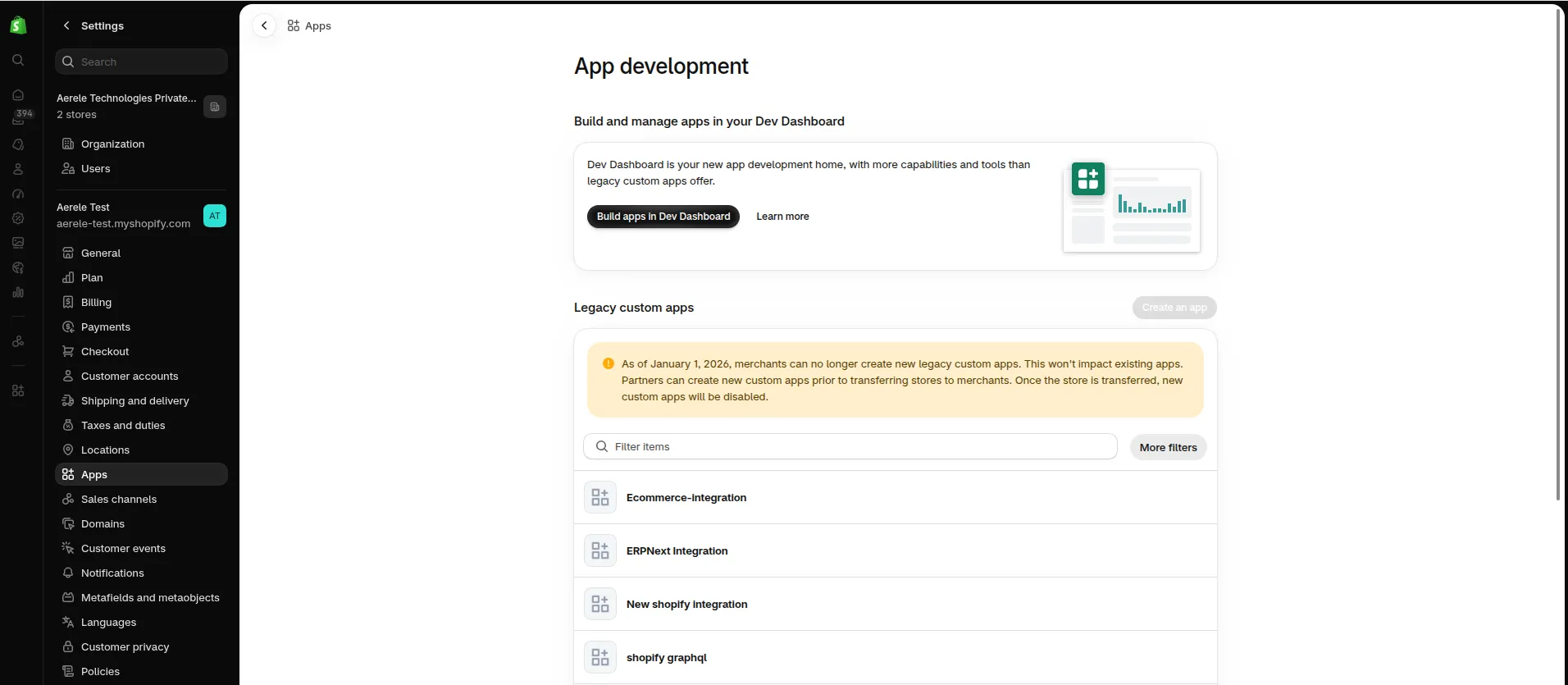
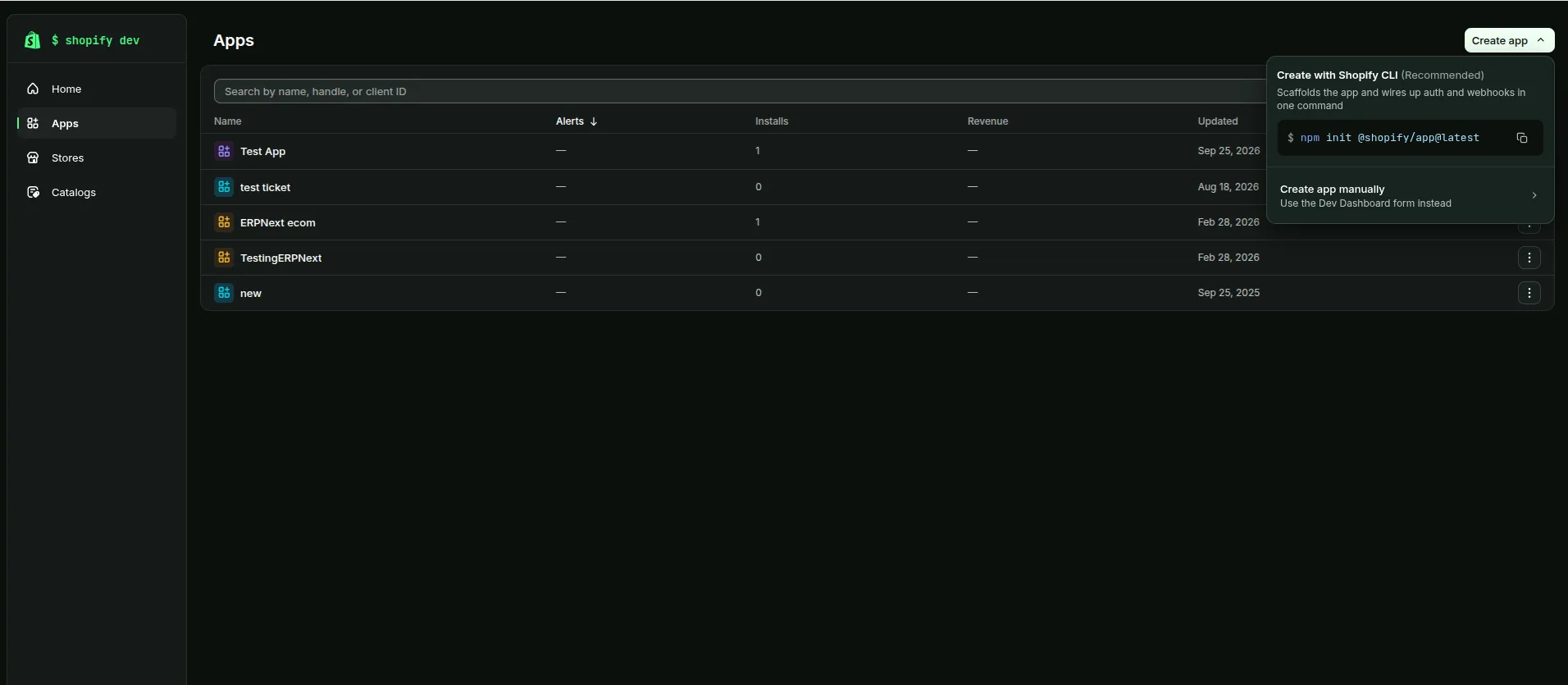
Start creating the app
In the Dev Dashboard, open Apps and click Create app. Choose Create app manually; the ERPNext integration only needs API access, so you can skip the Shopify CLI scaffolding.
Fill in the app details
Give the app a name (for example, "AereleEcommerce") and an app URL, then select the Admin API integration access scopes and the webhooks API version.
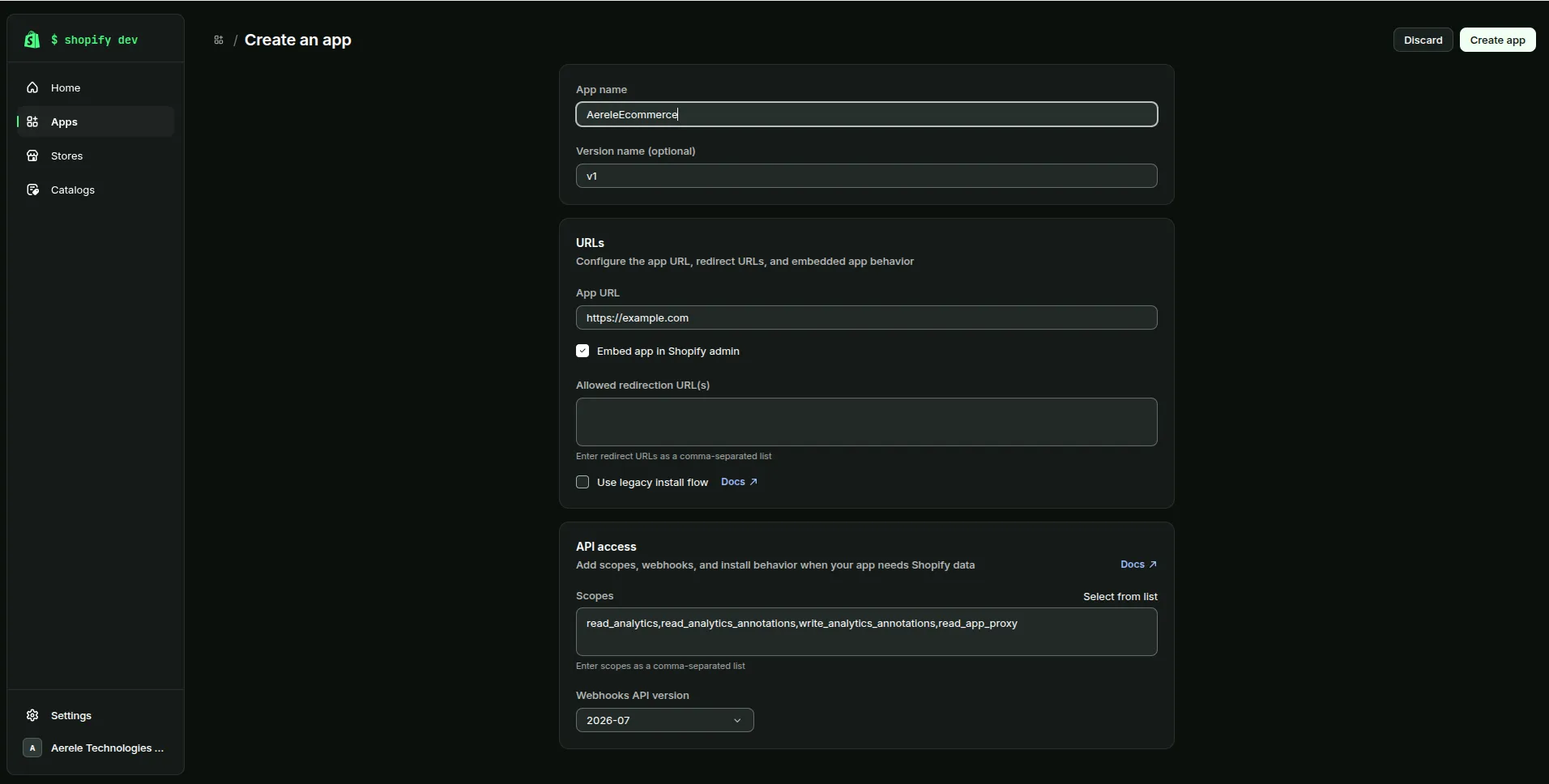
Click Create app.
Grant it access to your store data
Enable the API permissions required for ERPNext to synchronize orders, products, and inventory:
- read_orders for order webhooks and historical order import
- read_products and write_products for product and variant sync in both directions
- read_locations to fetch Shopify locations for warehouse mapping
- read_inventory and write_inventory to keep stock levels in sync
Set the webhooks API version to the latest one offered, then save the scopes.
Tip: A token only carries the scopes its app version had when it was issued. If you change the scopes later, release a new app version and reinstall the app on the store. Otherwise the connector keeps running with the old scopes.
Install the app and get your credentials
Install the app on your store (Home → Install app → select the store; the app and the store must belong to the same Shopify organization), then open App settings to copy the Client ID and reveal the Client secret. You will use these credentials in ERPNext in the next step.
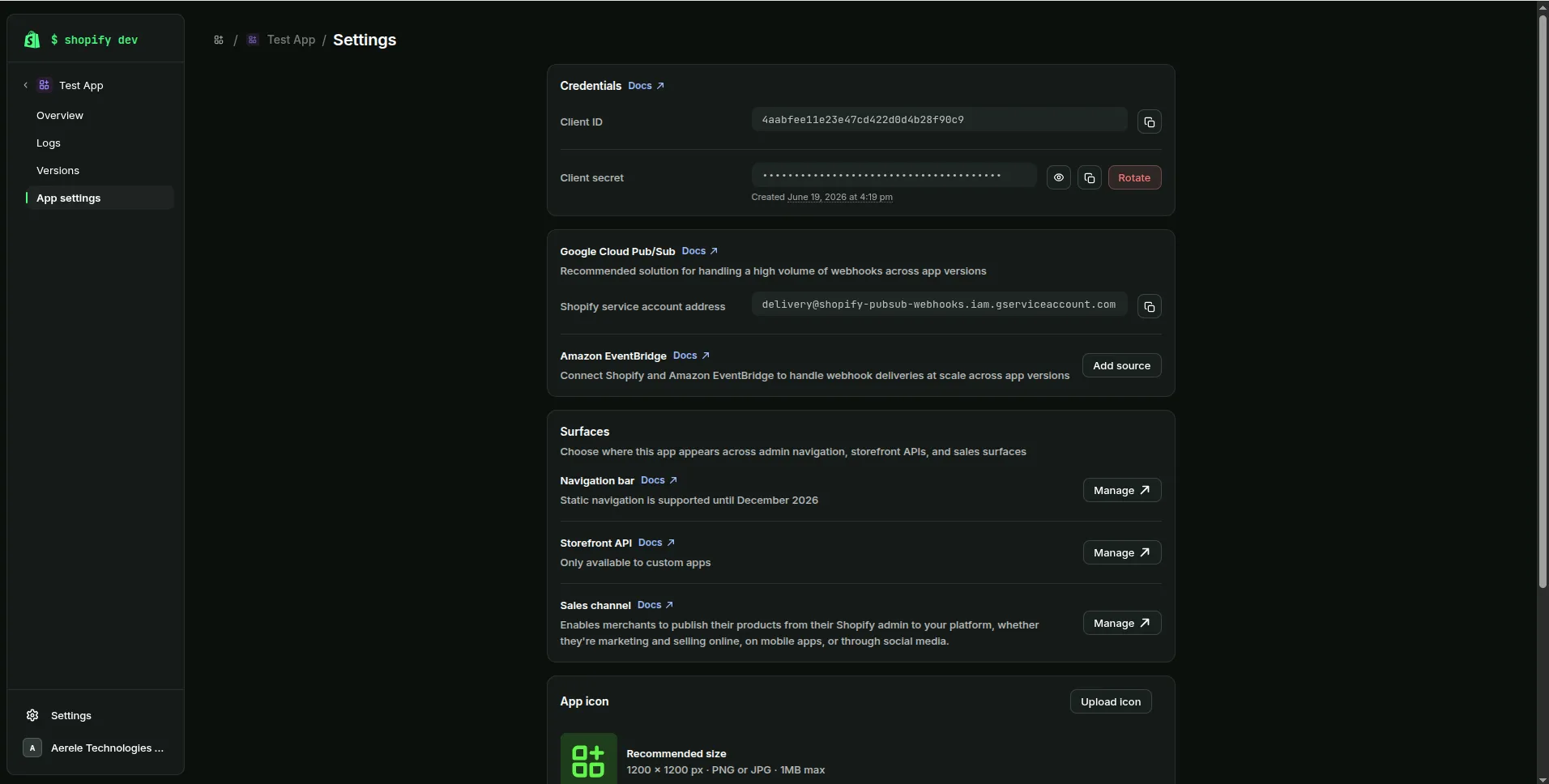
Tip: Shopify only lets you reveal the Client secret once. Copy it somewhere safe right away, or you will need to rotate it later. ERPNext exchanges these credentials for a short-lived access token (about 24 hours) using OAuth 2.0 client credentials and refreshes it automatically, so you never paste a token yourself.